
Creating Custom Effects#
ScopeSim’s built-in effects cover the most common physical phenomena in optical
systems, but you may need to model instrument-specific behaviour that isn’t
provided out of the box. Creating a custom Effect subclass lets you inject
arbitrary transformations into the simulation pipeline.
For a worked example that creates a PointSourceJitter effect and adds it to
a full MICADO simulation, see the
Custom Effects Example Notebook.
This page focuses on a complementary example – a non-symmetric vignetting flat
field applied at the image plane level.
Anatomy of an Effect Subclass#
Every custom effect needs three things:
z_order– a class variable (tuple of ints) that tells ScopeSim when in the pipeline to apply the effect.__init__– callssuper().__init__()and sets default parameters inself.meta.apply_to(self, obj)– the method that does the work. It receives an object, optionally modifies it, and must return it.
The apply_to method should use isinstance checks to determine whether to
act on the given object. During a simulation run, ScopeSim passes different
object types at different stages – your effect will only modify the types it
knows how to handle, and pass everything else through unchanged.
Choosing the Right Z-Order#
The z_order determines which pipeline stage your effect participates in, and therefore what type of object it receives:
Z-Order Range |
Object Type |
Use When… |
|---|---|---|
500–599 |
|
Modifying the original light distribution (e.g., spectral shifts, flux scaling) |
600–699 |
|
Modifying per-wavelength spatial cutouts (e.g., PSF convolution, dispersion) |
700–799 |
|
Modifying the wavelength-integrated focal plane image (e.g., vignetting, flat fields) |
800–899 |
|
Modifying the detector readout (e.g., noise, dark current, gain variations) |
An effect can have multiple z_order values to participate in both a setup stage and an application stage. For a simple custom effect, a single value is usually sufficient.
Example: Non-Symmetric Vignetting Flat Field#
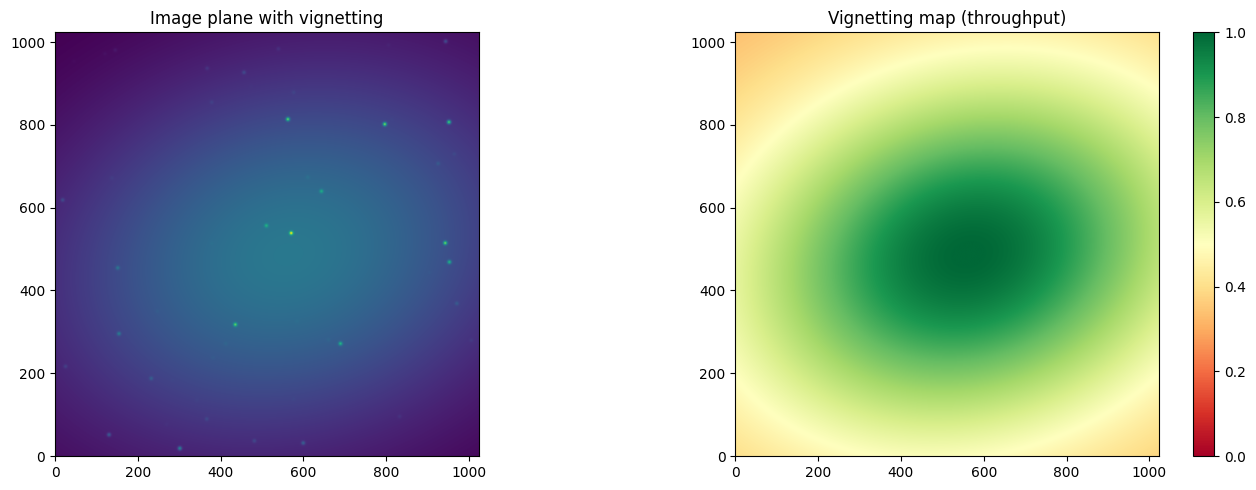
This example creates an effect that applies a spatially-varying throughput pattern to the image plane, simulating optical vignetting that is not radially symmetric – for instance, caused by an off-axis obstruction or asymmetric optics.
The vignetting is modelled as an elliptical Gaussian decay with configurable center offset, semi-axes, rotation angle, and throughput range.
Defining the effect class#
import numpy as np
from scopesim.effects import Effect
from scopesim.optics.image_plane import ImagePlane


class NonSymmetricVignetting(Effect):
    """Apply a non-symmetric vignetting pattern to the image plane."""

    z_order = (710,)

    def __init__(self, **kwargs):
        super().__init__(**kwargs)
        params = {
            "x_center_offset": 0.1,    # fractional offset from image center
            "y_center_offset": -0.05,
            "sigma_x": 0.8,            # fractional semi-axis (1.0 = full frame)
            "sigma_y": 0.6,
            "rotation_deg": 15.0,       # rotation angle of the vignetting ellipse
            "max_throughput": 1.0,
            "min_throughput": 0.3,
        }
        for key, val in params.items():
            self.meta.setdefault(key, val)
        self.meta.update(kwargs)

    def _make_vignetting_map(self, shape):
        """Generate a 2D vignetting map for a given image shape."""
        ny, nx = shape
        y, x = np.mgrid[:ny, :nx]

        # Normalise pixel coordinates to [-1, 1] and apply center offset
        x_norm = 2.0 * x / nx - 1.0 - self.meta["x_center_offset"]
        y_norm = 2.0 * y / ny - 1.0 - self.meta["y_center_offset"]

        # Rotate coordinate frame
        angle = np.deg2rad(self.meta["rotation_deg"])
        cos_a, sin_a = np.cos(angle), np.sin(angle)
        x_rot = x_norm * cos_a + y_norm * sin_a
        y_rot = -x_norm * sin_a + y_norm * cos_a

        # Elliptical Gaussian falloff
        r2 = (x_rot / self.meta["sigma_x"]) ** 2 + \
             (y_rot / self.meta["sigma_y"]) ** 2
        t_min = self.meta["min_throughput"]
        t_max = self.meta["max_throughput"]
        vmap = t_min + (t_max - t_min) * np.exp(-0.5 * r2)

        return np.clip(vmap, t_min, t_max)

    def apply_to(self, obj, **kwargs):
        if isinstance(obj, ImagePlane):
            vignetting = self._make_vignetting_map(obj.hdu.data.shape)
            obj.hdu.data *= vignetting
        return obj
Setting up the simulation#
import scopesim as sim
from scopesim.source.source_templates import star_field

# Load the example optical train and create a star field source
opt = sim.load_example_optical_train()
src = star_field(n=50, mmin=15, mmax=20, width=200)

# Create and add the vignetting effect
vig = NonSymmetricVignetting(name="asymmetric_vignetting")
opt.optics_manager.add_effect(vig)

opt.effects
| element | name | class | included |
|---|---|---|---|
| str16 | str22 | str29 | bool |
| basic_atmosphere | atmospheric_radiometry | AtmosphericTERCurve | True |
| basic_atmosphere | asymmetric_vignetting | NonSymmetricVignetting | True |
| basic_telescope | psf | SeeingPSF | True |
| basic_telescope | telescope_reflection | TERCurve | True |
| basic_instrument | static_surfaces | SurfaceList | True |
| basic_instrument | filter_wheel : [J] | FilterWheel | True |
| basic_instrument | slit_wheel : [narrow] | SlitWheel | False |
| basic_instrument | image_slicer | ApertureList | False |
| basic_detector | detector_window | DetectorWindow | True |
| basic_detector | detector_3d | DetectorList3D | False |
| basic_detector | qe_curve | QuantumEfficiencyCurve | True |
| basic_detector | exposure_integration | ExposureIntegration | True |
| basic_detector | dark_current | DarkCurrent | True |
| basic_detector | shot_noise | ShotNoise | True |
| basic_detector | detector_linearity | LinearityCurve | True |
| basic_detector | readout_noise | PoorMansHxRGReadoutNoise | True |
| basic_detector | source_fits_keywords | SourceDescriptionFitsKeywords | True |
| basic_detector | effects_fits_keywords | EffectsMetaKeywords | True |
| basic_detector | config_fits_keywords | SimulationConfigFitsKeywords | True |
| basic_detector | extra_fits_keywords | ExtraFitsKeywords | True |
Observing and visualising#
import matplotlib.pyplot as plt

opt.observe(src, update=True)

fig, axes = plt.subplots(1, 2, figsize=(14, 5))

# Show the vignetted image
axes[0].imshow(opt.image_planes[0].data, origin="lower")
axes[0].set_title("Image plane with vignetting")

# Show the vignetting map itself
vmap = vig._make_vignetting_map(opt.image_planes[0].data.shape)
im = axes[1].imshow(vmap, origin="lower", cmap="RdYlGn", vmin=0, vmax=1)
axes[1].set_title("Vignetting map (throughput)")
fig.colorbar(im, ax=axes[1])

plt.tight_layout()
plt.show()
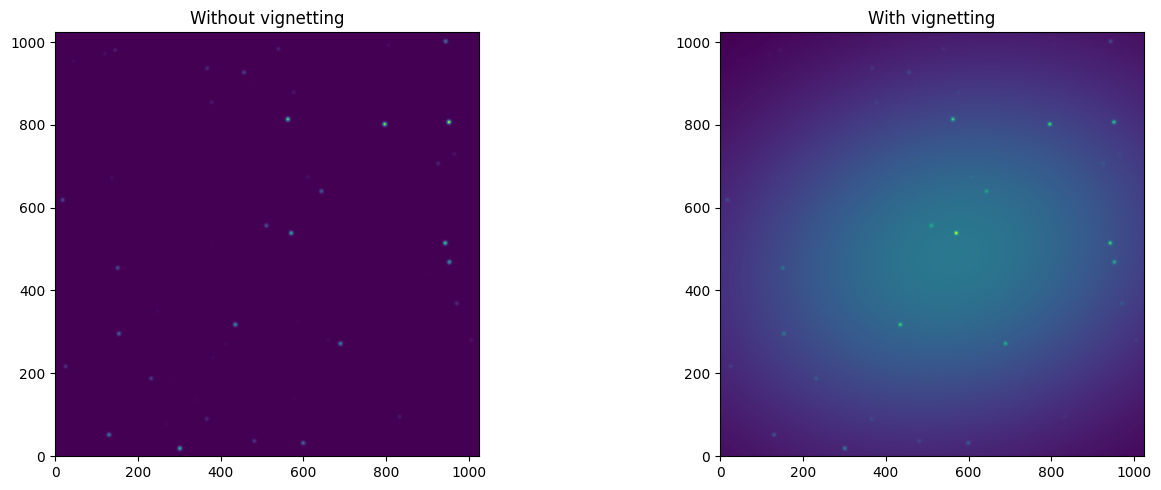
Comparing with and without vignetting#
# Observe without vignetting
vig.include = False
opt.observe(src, update=True)
no_vig_data = opt.image_planes[0].data.copy()

# Observe with vignetting
vig.include = True
opt.observe(src, update=True)
vig_data = opt.image_planes[0].data.copy()

fig, axes = plt.subplots(1, 2, figsize=(14, 5))
axes[0].imshow(no_vig_data, origin="lower")
axes[0].set_title("Without vignetting")
axes[1].imshow(vig_data, origin="lower")
axes[1].set_title("With vignetting")
plt.tight_layout()
plt.show()
Modifying Parameters at Runtime#
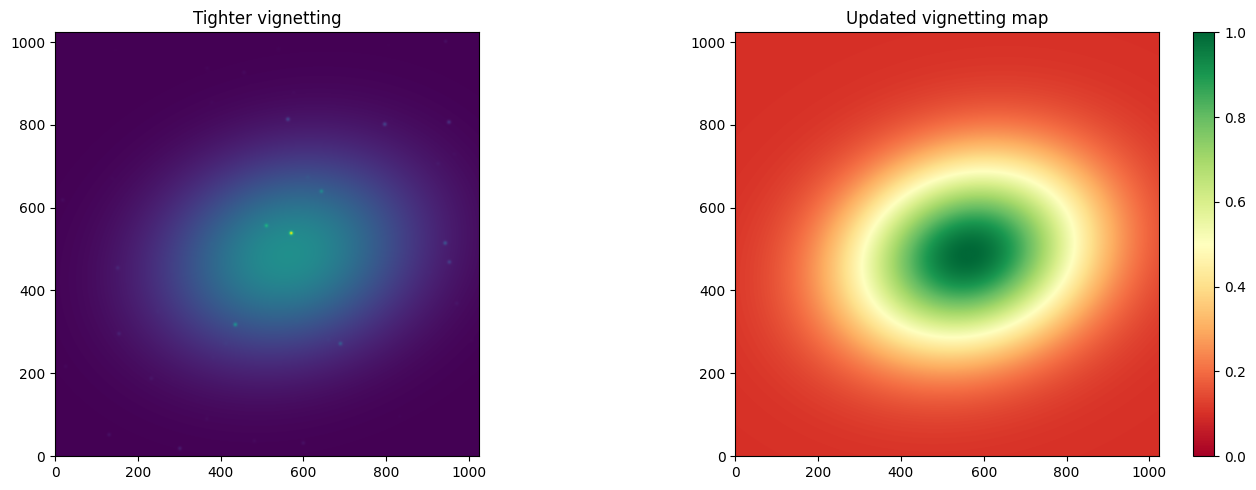
Effect parameters live in the .meta dictionary and can be changed between
observations:
# Make the vignetting more extreme
opt["asymmetric_vignetting"].meta["sigma_x"] = 0.4
opt["asymmetric_vignetting"].meta["sigma_y"] = 0.3
opt["asymmetric_vignetting"].meta["min_throughput"] = 0.1

opt.observe(src, update=True)

fig, axes = plt.subplots(1, 2, figsize=(14, 5))
axes[0].imshow(opt.image_planes[0].data, origin="lower")
axes[0].set_title("Tighter vignetting")

vmap = vig._make_vignetting_map(opt.image_planes[0].data.shape)
im = axes[1].imshow(vmap, origin="lower", cmap="RdYlGn", vmin=0, vmax=1)
axes[1].set_title("Updated vignetting map")
fig.colorbar(im, ax=axes[1])
plt.tight_layout()
plt.show()
Tips for Writing Robust Effects#
Always return
objfromapply_to, even when yourisinstancecheck doesn’t match. ScopeSim passes many object types through the same list of effects – returningNonewill break the pipeline.Use
isinstanceguards to decide whether to act. Yourapply_towill be called withSource,FieldOfView,ImagePlane, andDetectorobjects at different stages.Choose the right pipeline stage carefully:
FieldOfView(z=600–699): your effect is applied per wavelength bin and per spatial chunk – appropriate for wavelength-dependent effects.ImagePlane(z=700–799): your effect sees the wavelength-integrated focal plane image – appropriate for achromatic spatial effects like vignetting.Detector(z=800–899): your effect sees the detector readout after extraction – appropriate for electronic effects like noise.
Look at built-in effects for patterns. For example,
PixelResponseNonUniformityinscopesim/effects/electronic/noise.pyis a simple multiplicative detector-level effect.SeeingPSFinscopesim/effects/psfs/analytical.pyshows how to build a convolution kernel.Use
from_currsysfor parameters that should be resolvable as bang strings (!OBS.some_param):from scopesim.utils import from_currsys value = from_currsys(self.meta["my_param"], self.cmds)
Adding Custom Effects to the Optical Train#
Custom effects are added programmatically using optics_manager.add_effect():
my_effect = MyCustomEffect(name="my_effect", some_param=42)
opt.optics_manager.add_effect(my_effect)
After adding an effect, pass update=True to opt.observe() so the optical
train rebuilds its internal structures to include the new effect.
Note that YAML-based instrument packages resolve effect class names from the
scopesim.effects namespace. Custom effect classes from third-party packages
currently need to be added programmatically as shown above.
See Also#
Effects Overview – reference for all built-in effect types and the simulation pipeline
Custom Effects Example Notebook – a worked example with
PointSourceJitterand MICADOThe auto-generated API Reference for scopesim.effects.Effect